How to Set Up a Python Development Environment on Windows
How to Set Up a Python Development Environment on Windows
Python is easy to run on Windows these days. The installer is one download, the editor is free, and the whole setup takes about 15 to 30 minutes if you follow a clear path. You do not need to be a system administrator, and you do not need to reconfigure your entire machine. You just need to install Python, confirm that Windows can find it, choose a comfortable editor, and learn how to keep each project’s packages separate. This guide walks through that process step by step, with examples you can copy, common pitfalls, and a few extra workflow tips that make Windows feel like a first-class Python environment.
Step 1: Install Python from python.org
Start by downloading the official Python installer from python.org. Go to the Downloads section and choose the latest stable release for Windows. The 64-bit installer is the right choice for almost every modern PC. Run the installer and, before you click anything else, check the box labeled Add python.exe to PATH. This single checkbox saves a lot of trouble later because it lets you type python from any folder in Command Prompt, PowerShell, or Windows Terminal.
You can choose Install Now for a standard setup, or Customize installation if you want to change the install location or exclude optional features. For most learners and developers, the default options are fine. If you are unsure, keep pip selected, keep the py launcher selected, and let the installer do its work. When it finishes, close the installer and open a fresh terminal window so the new PATH settings take effect.
Should you use the Microsoft Store version?
The Microsoft Store version of Python can work, but it sometimes creates confusing behavior around where packages are installed and which Python executable opens when you type python. The python.org installer gives you more control, clearer paths, and a more predictable experience with virtual environments. If you already installed from the Store and everything works, you can keep it. If you are starting fresh, use the python.org installer.
Step 2: Verify the Installation
Open Windows Terminal, Command Prompt, or PowerShell. Run a few simple commands to confirm that Python and pip are available.
python --version
py --version
pip --version
where python
The py launcher is especially useful on Windows because it can manage multiple Python versions. For example, py -3.12 runs Python 3.12 even if another version is first on your PATH. If python --version returns a version number, you are ready. If Windows opens the Microsoft Store instead, search for App execution aliases in Windows Settings and turn off the aliases for Python. If you see “python is not recognized,” the PATH checkbox was likely missed; reinstall Python and select it, or add Python to PATH manually through Environment Variables.
You can also test the interactive interpreter. Type python, then enter a quick command:
print("Hello, Windows")
You should see the message printed back to you. Type exit() to leave the interpreter. This small test proves that the interpreter runs, but it does not yet prove that your editor and project workflow are ready. That comes next.
Step 3: Choose an Editor or IDE
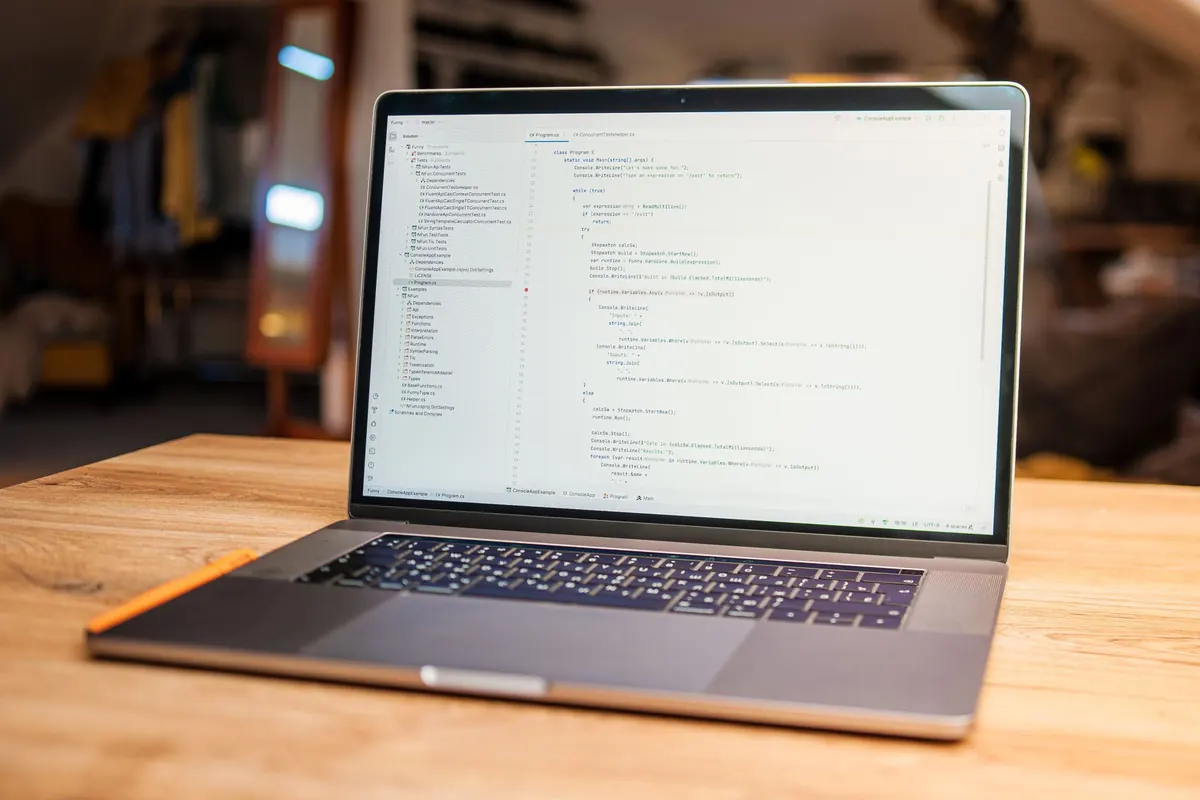
You can write Python in Notepad, but a proper editor gives you syntax highlighting, auto-completion, debugging, and terminal integration. Visual Studio Code is the most popular free choice on Windows. It is lightweight, works well with Python, and has a huge extension ecosystem. Other good options include PyCharm Community Edition, Thonny for absolute beginners, and Sublime Text or Notepad++ for quick edits.
For this guide, VS Code is a strong default. Download it from the official website, run the installer, and during setup you can enable options like “Add to PATH” and “Open with Code” for folders. Those options make it easier to launch your project from Windows Terminal later.
Configure VS Code for Python
- Open VS Code and press Ctrl+Shift+X to open the Extensions view.
- Search for Python and install the extension published by Microsoft.
- Create a folder for your project, then open that folder in VS Code with File > Open Folder.
- Create a new file named hello.py.
- Press Ctrl+Shift+P, type Python: Select Interpreter, and choose the Python version you installed.
In hello.py, type the following:
print("Hello from Windows!")
Save the file and run it with the play button in the top-right corner, or right-click the editor and choose <
Photo: Daniil Komov / Pexels

You Might Also Like
Five common SQL mistakes, including SELECT *, missing indexes, poor joins, and NULL traps, with practical fixes for faster, clearer queries.
Git is the version control system on your computer; GitHub is where you host and share repositories. Here is how they differ, plus commands to start.